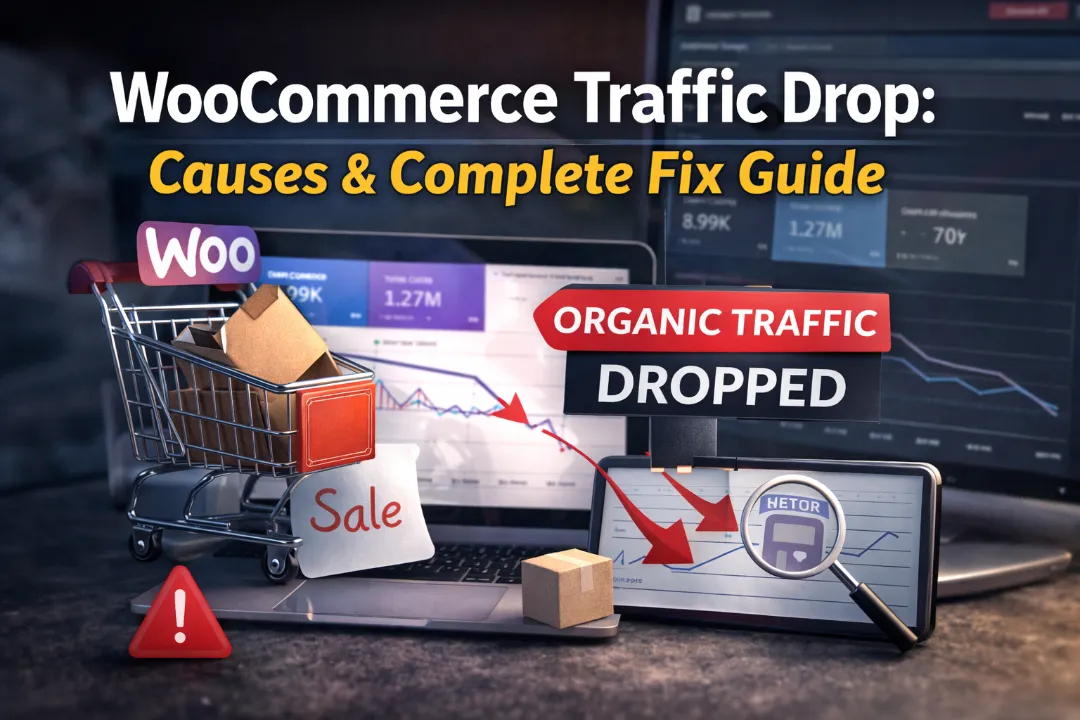
WooCommerce powers over 7 million ecommerce stores worldwide — and it comes with a specific set of SEO challenges that cause traffic drops for thousands of store owners every year. Many of these issues are unique to how WooCommerce generates URLs and manages product data, and they are not visible in your storefront — only in Google Search Console.
If your WooCommerce store’s organic traffic has dropped, this guide identifies the most common WooCommerce-specific causes and gives you the exact steps to diagnose and fix each one.
Why WooCommerce Has Unique SEO Challenges
WooCommerce builds on WordPress — which is actually a strength from an SEO perspective, since WordPress is highly SEO-friendly. However, WooCommerce adds several layers of complexity:
- Product variations and attributes create URL proliferation. A product with 5 colours and 4 sizes generates 20 variation combinations. By default, WooCommerce creates URLs for each variation, leading to duplicate content at scale.
- Abandoned cart and checkout pages can get indexed. If your robots.txt or SEO plugin settings are not correctly configured, Google can index cart pages, checkout pages, and order confirmation pages — all of which are low-quality from a content perspective and can drag down your site’s quality signals.
- Product category and tag archives create additional pages. Every product category, product tag, and custom taxonomy creates an archive page. These are often thin unless you add editorial content.
- WooCommerce plugin updates can conflict with SEO plugins. Updates to WooCommerce itself, or to plugins that extend it (wishlist plugins, review plugins, filter plugins), can conflict with Yoast, Rank Math, or other SEO plugins — breaking canonical tags, schema output, or sitemap generation.
- Out-of-stock product pages. WooCommerce stores typically have products that go out of stock and stay out of stock indefinitely. These pages can accumulate as soft 404s — a significant quality issue for large stores.
Step 1: Diagnose Using Google Search Console
Before assuming you know the cause, spend 15 minutes in GSC:
- Performance report → Compare clicks over 90 days. Identify when the drop started exactly.
- Indexing → Pages → Check “Not indexed” tab. What are the most common error types?
- Enhancements → Any product schema errors (missing price, availability, brand)?
- Core Web Vitals → Any pages showing “Poor” on mobile?
- Manual Actions → Should be clean (“No issues detected”).
The specific GSC errors determine which of the following causes applies.
The 9 Most Common WooCommerce Traffic Drop Causes
1. Out-of-Stock Products Becoming Soft 404s
WooCommerce by default continues to show out-of-stock product pages — but many themes display them with just “Out of stock” and nothing else useful. Google classifies these as soft 404s: the server returns 200 OK, but the content provides no value.
Over time, a large number of soft 404 product pages degrades your entire domain’s quality signals.
How to diagnose: GSC → Indexing → Pages → “Soft 404.” If you see product URLs here, out-of-stock handling is your issue.
Fix:
- For temporarily out-of-stock products: Keep the page live but add expected restock date, alternative product suggestions, and a “notify me when back in stock” email capture
- For permanently discontinued products: Add a 301 redirect to the most relevant category or a similar product
- Use the WooCommerce setting → Products → Inventory → Out of Stock Visibility to hide completely out-of-stock products from shop listings (but keep their pages live with proper content)
For a complete guide, see our Soft 404 fix guide.
2. Cart, Checkout, and Account Pages Getting Indexed
WooCommerce creates several dynamic pages that should never be indexed: Cart (/cart/), Checkout (/checkout/), My Account (/my-account/), and Order Received (/checkout/order-received/). If these pages are indexed, Google sees them as thin, low-quality pages with minimal content — dragging down your overall domain quality.
How to diagnose: In GSC Performance report, filter by pages matching /cart/, /checkout/, /my-account/. Are these getting impressions or clicks?
Fix: In your SEO plugin (Yoast or Rank Math), set these pages to noindex. In Yoast:
- Go to SEO → Search Appearance → Pages
- Find Cart, Checkout, and My Account pages → set to “Don’t index”
Alternatively, add noindex to your robots.txt for WooCommerce system pages:
User-agent: *
Disallow: /cart/
Disallow: /checkout/
Disallow: /my-account/
Note: Using Disallow prevents crawling but not indexing (if Google finds these URLs elsewhere). Using noindex is more reliable for preventing indexing.
3. Product Variation URL Duplication
WooCommerce creates unique URLs for product variations in some configurations: /product/t-shirt/?attribute_pa_colour=red. If your store has many product variations, this can generate thousands of near-duplicate URLs, diluting crawl budget and causing duplicate content signals.
How to diagnose: In Screaming Frog, look for URLs containing ?attribute_ in the query string. If these are being indexed, variation URL duplication is occurring.
Fix: In your SEO plugin or a dedicated WooCommerce SEO plugin:
- Set canonical tags on variation URLs to point to the base product URL
- Add URL parameters to GSC’s URL Parameters tool (Legacy → URL Parameters) so Google knows these parameters do not generate unique content
- Use Yoast’s WooCommerce SEO add-on, which handles variation canonicals automatically
4. Product Schema Errors (Price, Availability, Brand, Shipping)
Google expects WooCommerce product pages to output complete structured data. Missing or incorrect schema fields prevent your products from appearing as rich results in search — which reduces click-through rates and can affect rankings.
Common WooCommerce schema errors in GSC:
- Missing field: price — product price not in schema (common when using price ranges for variable products)
- Missing field: availability — stock status not output in schema
- Missing shippingDetails — increasingly required for product rich results
- Missing hasmerchantReturnPolicy — return policy not in schema
How to fix: Install Rank Math Pro or the Yoast WooCommerce SEO plugin — both output complete product schema including price, availability, brand, and can be configured to include shipping and return policy. Check our guides on fixing missing shippingDetails for specific implementation instructions.
5. Category Page Thin Content
WooCommerce category pages (Shop → Clothing → T-Shirts) typically show only a product grid. Google evaluates these as thin content because there is no editorial description, no unique value, and they are nearly identical to other sites selling the same product category.
Fix: Add a category description in WooCommerce → Product Categories → select category → Description. Add 200–400 words explaining:
- What is in this category
- How to choose between the products
- Any unique selection or quality standards your store applies
- FAQs about products in this category
Focus on your top 10 highest-traffic category pages first.
6. Duplicate Product URLs From Multiple Categories
In WooCommerce, if a product is assigned to multiple categories, it may be accessible at:
- /product/t-shirt/ (direct product URL)
- /product-category/clothing/product/t-shirt/
- /product-category/sale/product/t-shirt/
All returning the same content = duplicate content.
How to diagnose: In Screaming Frog, look for products with the same title tag appearing at multiple URLs.
Fix: WooCommerce has a setting to disable product category base in URLs. Go to WooCommerce → Settings → Permalinks → Product Permalinks. Using “/%product%/” (without the category) prevents category-prefixed URLs from being generated for products. Alternatively, ensure canonical tags on all product URLs point to the /product/[slug]/ version.
7. 404 Errors From Deleted Products or Category Restructuring
When products are deleted or categories are renamed (changing the slug), the old URLs return 404 errors. Previously ranked product pages lose all their ranking history.
How to diagnose: GSC → Indexing → Pages → “Not found (404).” Look for product or category URLs.
Fix: Add 301 redirects. For WordPress/WooCommerce, use the Redirection plugin:
- Install and activate Redirection plugin
- Go to Tools → Redirection
- Add the old URL as source and the relevant new product or category URL as destination
For bulk redirects after a major category restructure, export the old URLs from GSC, prepare a CSV of source → destination mappings, and import them into Redirection.
See our complete 404 error fix guide.
8. Plugin Conflict Affecting SEO Output
WooCommerce stores typically run many plugins — payment gateways, review systems, inventory management, shipping calculators. Each plugin can potentially conflict with your SEO plugin, breaking canonical tags, adding duplicate title tags, or corrupting schema output.
How to diagnose:
- View page source of a product page (right-click → View Page Source)
- Search for canonical — is there one canonical or multiple?
- Search for og:title — is it appearing twice?
- Search for application/ld+json — is the product schema present and correct?
Fix: If you find duplicate tags or corrupted schema, identify which plugin is adding the conflict. Deactivate plugins one by one and re-test until the conflict is found. A developer can often resolve conflicts by conditionally loading specific plugin features only where needed.
9. WooCommerce or WordPress Update Breaking Permalinks
A WordPress core update or WooCommerce update can occasionally reset permalink settings or break rewrite rules, causing previously working URLs to return 404 errors site-wide.
How to diagnose: If a massive number of pages suddenly returned 404 after an update, this is the cause.
Fix:
- Go to WordPress → Settings → Permalinks
- Click “Save Changes” without changing anything — this forces WordPress to regenerate rewrite rules
- If that does not resolve it, check your .htaccess file — if the WordPress rewrite rules are missing, regenerate them or restore from backup
WooCommerce SEO Recovery Checklist
- GSC diagnosed — specific error types identified and prioritised
- Out-of-stock products — thin pages redirected or enriched
- Cart, checkout, my-account pages — noindexed
- Product variation URLs — canonical tags pointing to base product
- Product schema errors fixed (price, availability, shipping, return policy)
- Top 10 category pages — editorial descriptions added
- Multi-category product duplicate URLs resolved with canonical tags
- 404 errors from deleted products — 301 redirects added
- No duplicate SEO tags in page source (one canonical, one title, one schema block per page)
- Permalinks rebuilt (Settings → Permalinks → Save)
Getting Professional WooCommerce SEO Help
WooCommerce SEO issues — particularly schema conflicts, variation URL management, and plugin conflict resolution — often require both SEO knowledge and WordPress developer access to fix correctly.
Our web development team handles WooCommerce technical SEO issues alongside our SEO audit and fixing services. For a complete WooCommerce SEO audit, request a free quote.
For general ecommerce traffic drop causes beyond WooCommerce-specific issues, see our complete ecommerce traffic drop guide and WordPress traffic drop guide.