
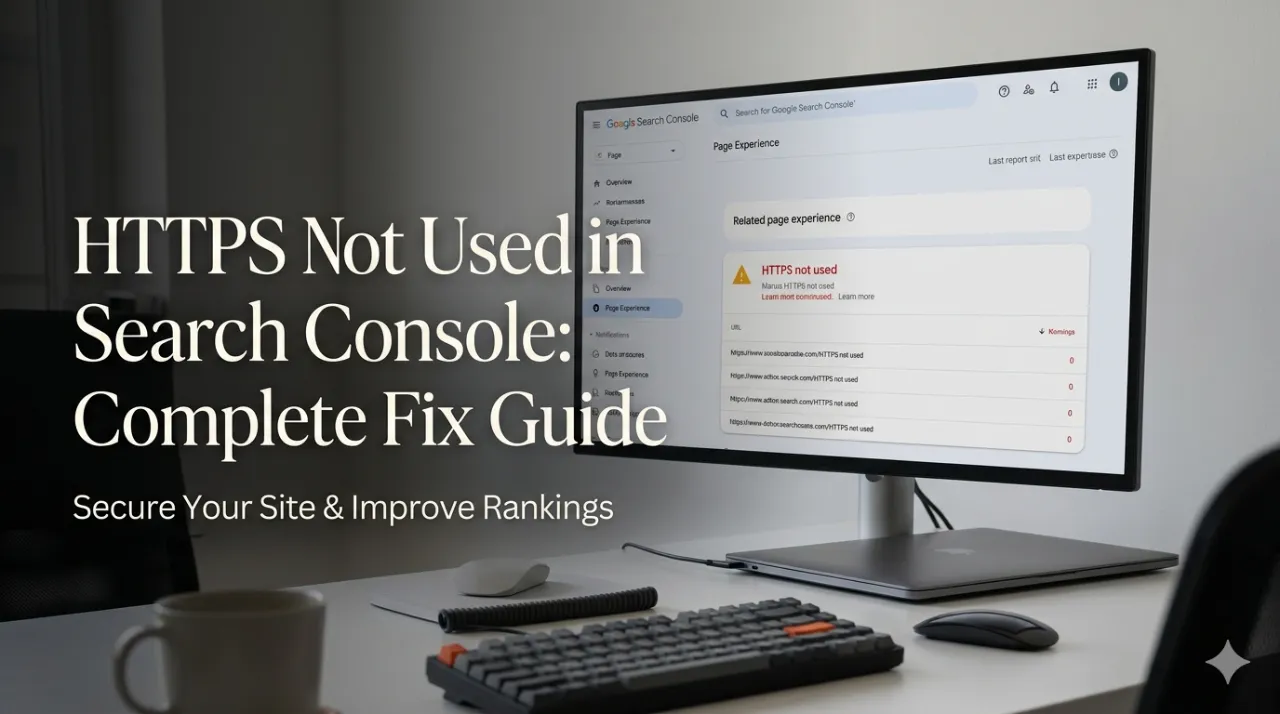
“HTTPS not used” appears in Google Search Console’s Page Experience report and signals that pages on your site are being served over HTTP rather than the secure HTTPS protocol. In 2026, running any page over HTTP is both a ranking disadvantage and a trust barrier for users.
This guide explains what the HTTPS error means in GSC, why it matters for your rankings, and exactly how to migrate your site to HTTPS correctly without losing the rankings you have built.
What Does “HTTPS Not Used” Mean in GSC?
In Google Search Console, the Page Experience report includes an HTTPS signal. When GSC reports “HTTPS not used,” it means one of the following:
- Your site is entirely on HTTP — no SSL certificate installed, all pages served over http://
- Some pages are on HTTP — your site has HTTPS but some pages (perhaps older content or specific sections) are still loading over HTTP
- Mixed content — your page URL is HTTPS but it loads resources (images, scripts, stylesheets) from HTTP URLs, triggering a browser security warning
Why HTTPS Matters for SEO in 2026
Google confirmed HTTPS as a ranking signal in 2014 and has progressively increased its weight since. In 2026, HTTPS is effectively a baseline requirement:
- Rankings: Sites without HTTPS face a ranking penalty. Not a catastrophic one on its own, but compounded with other quality signals, it materially suppresses rankings.
- Browser trust: Google Chrome and all major browsers show a “Not Secure” warning in the address bar for HTTP sites. For ecommerce sites and sites handling any user data, this warning causes significant user abandonment before the page is even read.
- Core Web Vitals measurement: GSC’s Core Web Vitals and Page Experience assessment requires HTTPS. HTTP sites receive incomplete or no assessment data.
- AI Overview eligibility: AI Overviews predominantly cite HTTPS sources. HTTP pages are significantly less likely to appear in AI-generated answers.
How to Fix “HTTPS Not Used” in GSC
The fix depends on your current situation.
Situation 1: Your Entire Site Is Still on HTTP
This requires a full HTTPS migration. Here is the correct process:
Step 1 — Install an SSL certificate
An SSL (Secure Sockets Layer) certificate is what enables HTTPS. In 2026, free SSL certificates are available through Let’s Encrypt, and most hosts offer automated SSL installation.
- For most web hosts: Go to your hosting control panel (cPanel, Plesk, or your host’s custom dashboard) → look for SSL/TLS or Certificates → Enable SSL or Install Let’s Encrypt
- For Cloudflare users: Enable Flexible or Full SSL in your Cloudflare dashboard (Full is strongly recommended)
- For WordPress on managed hosting: Kinsta, WP Engine, SiteGround, and similar hosts provide one-click SSL from the dashboard
After installing, verify the certificate by visiting https://yourdomain.com in a browser. If it loads with a padlock icon and no warnings, the certificate is working.
Step 2 — Set up HTTPS redirects
Install the SSL certificate is not enough — you must redirect all HTTP traffic to HTTPS. Without this, both http://yourdomain.com and https://yourdomain.com will be accessible, creating duplicate content.
For Apache servers (.htaccess):
RewriteEngine On

RewriteCond %{HTTPS} off

RewriteRule ^(.*)$ https://%{HTTP_HOST}%{REQUEST_URI} [L,R=301]
For Nginx servers:
server {
    listen 80;
    server_name yourdomain.com www.yourdomain.com;
    return 301 https://$host$request_uri;
}
For WordPress with a plugin: Install the “Really Simple SSL” plugin. It handles both the redirect and the mixed content fixes automatically.
For Shopify: HTTPS is handled automatically. All Shopify stores are served over HTTPS by default.
Step 3 — Fix mixed content
After redirecting to HTTPS, your page URLs will be HTTPS, but resources embedded in your content may still load over HTTP — causing browser warnings and preventing a fully secure connection.
Mixed content types:
- Active mixed content (scripts, stylesheets): Blocked by browsers and causes the most serious security warnings. Fix immediately.
- Passive mixed content (images, iframes): Shown with a warning but not blocked. Fix for completeness.
To identify mixed content: Open Chrome DevTools (F12) → Console tab → reload the page. Any mixed content appears as a warning: “Mixed Content: The page at ‘https://…’ was loaded over HTTPS but requested an insecure image ‘http://…’”
For WordPress: Use the Better Search Replace plugin to find and replace all http://yourdomain.com instances in your database with https://yourdomain.com. This updates all internal URLs stored in your content.
For hardcoded HTTP resource URLs (external resources): Update the src attributes of any external scripts, stylesheets, or images that use http:// to use https://. If the external resource does not support HTTPS, consider self-hosting it or removing it.
Step 4 — Update internal links and canonical tags
After migrating to HTTPS, all internal links, canonical tags, and sitemap URLs should reference HTTPS URLs. For WordPress, Better Search Replace (from Step 3) handles your content database, but check your theme’s hardcoded links and your SEO plugin’s site URL setting:
- Yoast: Settings → Site URL — ensure it is set to https://
- Rank Math: General Settings — site URL should be HTTPS
- WordPress Settings → General → WordPress Address and Site Address — both should be https://
Step 5 — Update GSC
After migrating:
- Add your HTTPS site as a new property in GSC (GSC treats HTTP and HTTPS as separate sites)
- Submit your updated HTTPS sitemap
- Update your sitemap URL in GSC to the HTTPS version
- Use the Change of Address tool in your old HTTP GSC property to notify Google of the migration
Situation 2: Some Pages Still on HTTP (Partial HTTPS)
If your site is mostly HTTPS but some specific pages still load over HTTP, the fix is simpler:
- Identify which pages are HTTP using Screaming Frog (filter Response Code = 200, Protocol = http)
- Check whether these pages have SSL certificate coverage — some older subdomains or legacy sections may not
- Ensure the HTTP-to-HTTPS redirect rules (from Step 2 above) cover these pages
- If the pages are on a different subdomain (e.g. http://shop.yourdomain.com), ensure the SSL certificate covers that subdomain (wildcard certificates cover *.yourdomain.com)
Situation 3: Mixed Content on HTTPS Pages
If your domain is already HTTPS but GSC flags HTTPS issues, you are dealing with mixed content — resources loading over HTTP on otherwise-secure pages.
Follow Step 3 from above. Key tools:
- Chrome DevTools Console — shows all mixed content warnings in real time for the page you are viewing.
- Why No Padlock (whynopadlock.com) — enter any URL to identify all HTTP resources loading on that page.
- Screaming Frog → Custom Search → search for http:// in source to find pages with HTTP resource references.
Verifying the Fix in GSC
After implementing the HTTPS migration:
Step 1:
Use GSC’s URL Inspection tool on several key pages. Verify:
- The canonical URL shows as https://
- No redirect errors
- Page is indexable
Step 2:
Go to GSC → Page Experience → HTTPS. This may take 1–4 weeks to update after your migration, as GSC needs to recrawl your pages.
Step 3:
Check for any redirect-related errors in GSC → Indexing → Pages. A full HTTP-to-HTTPS migration can cause temporary redirect errors that resolve as Google recrawls. See our redirect error guide if errors persist.
Common HTTPS Migration Mistakes to Avoid
- Forgetting to redirect HTTP to HTTPS. Installing an SSL certificate without setting up the redirect leaves both versions of your site accessible, creating duplicate content.
- Forgetting the www variant. Ensure all four combinations redirect correctly to your
canonical version:
- http://yourdomain.com → https://yourdomain.com
- http://www.yourdomain.com → https://yourdomain.com
- https://www.yourdomain.com → https://yourdomain.com
- https://yourdomain.com → stays (this is your canonical)
- Not updating GSC. GSC treats HTTP and HTTPS properties separately. You must verify your HTTPS site in GSC and submit your sitemap to the HTTPS property.
- Not fixing internal links. Even after redirecting HTTP to HTTPS, internal links using http:// create unnecessary redirect hops, wasting crawl budget.
- Using an expired SSL certificate. SSL certificates expire. Set up auto-renewal (Let’s Encrypt certificates renew automatically if set up correctly) or calendar reminders. An expired certificate causes a browser security error that effectively blocks users from your site.
How Long Does HTTPS Migration Affect Rankings?
Done correctly, an HTTPS migration should have minimal negative impact on rankings and may provide a positive signal. The key is implementing all steps correctly — especially the redirects and canonical updates.
Most sites see rankings stabilise within 2–4 weeks of a correctly implemented migration as Google recrawls and re-indexes the HTTPS versions of pages.
If you see ranking drops immediately after migration, the most common cause is a configuration error — incorrect redirects, duplicate content between HTTP and HTTPS, or the new GSC property not being properly set up. Check each of the steps above methodically.
Need Professional Help With HTTPS Migration?
A full HTTP-to-HTTPS migration — especially for large sites with thousands of URLs, complex subdomain structures, or ecommerce functionality — is a technical project that benefits from professional implementation. Errors in redirect configuration or canonical setup during migration can cause significant, lasting ranking damage.
Our web development team handles HTTPS migrations as part of our technical SEO services, ensuring correct implementation of all redirects, canonical tags, and GSC updates. Get a free consultation.