Largest Contentful Paint (LCP) is one of Google’s three Core Web Vitals — and in 2026, it remains one of the most commonly failed metrics in Google Search Console. A poor LCP score tells Google that your page is slow to load for real users, and it directly impacts your rankings.
This guide explains exactly what LCP measures, what causes it to fail, and how to fix it in any CMS — with specific steps for WordPress and Shopify.
What Is LCP and Why Does It Matter?
LCP measures how long it takes for the largest visible content element on your page to load and appear on screen. In most cases, the largest element is one of:
- A hero image or banner
- A large heading or paragraph of text
- A video poster/thumbnail image
- A large background image
Google’s 2026 LCP targets:
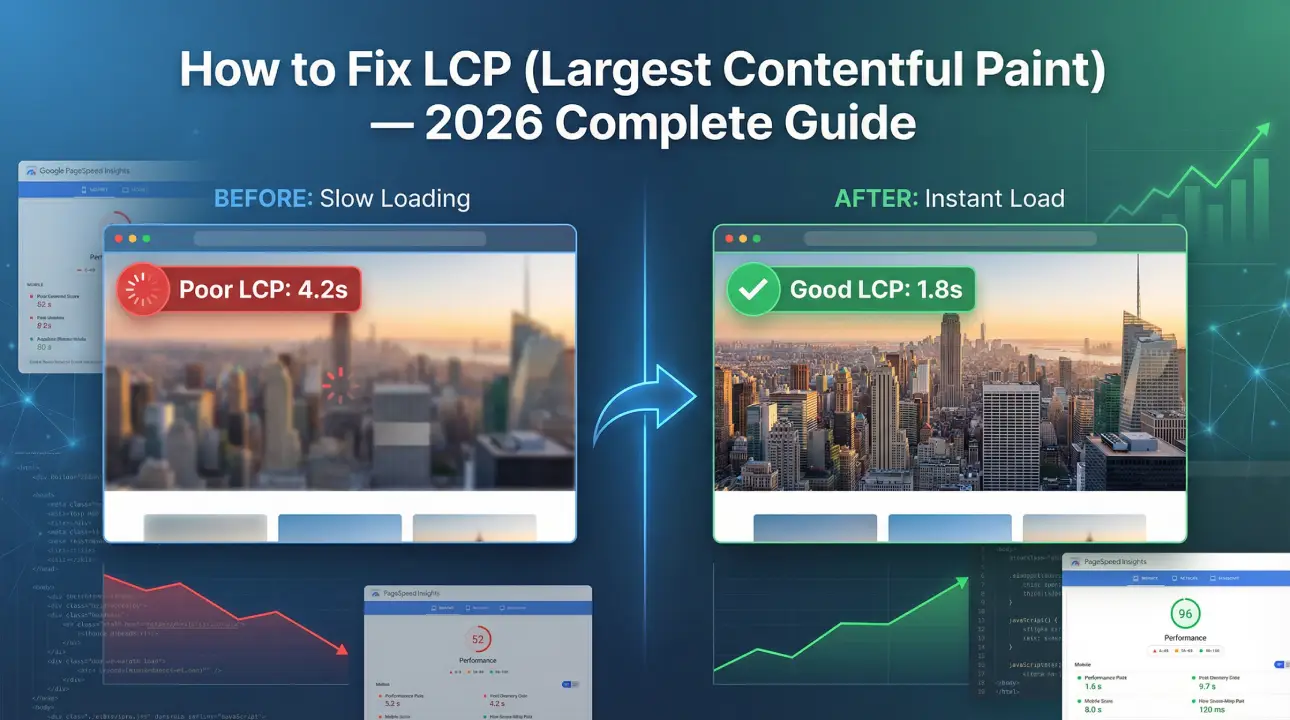
- Good: Under 2.5 seconds
- Needs improvement: 2.5 – 4 seconds
- Poor: Over 4 seconds
If your LCP is in the “Poor” range, you are almost certainly losing rankings to competitors with faster pages. Research consistently shows that a 1-second improvement in page load time increases conversions by 7–12% — meaning LCP is not just an SEO issue but a revenue issue.
For context on how Core Web Vitals affect your overall SEO, see our Core Web Vitals overview guide
How to Find Your LCP Score
In Google Search Console:
- Go to GSC → Core Web Vitals (under Experience)
- Click “Open Report” for Mobile (mobile is what Google primarily uses for
ranking) - Look for pages listed as “Poor” — click through to see which URLs are
affected - Note the LCP issue type reported (most common: “Image was a lazy-loaded LCP element”, “LCP element was not discoverable in HTML”, “Slow resource load time”)
In PageSpeed Insights:
- Go to PageSpeed Insights
- Enter your URL and run the test
- Under Lab Data, find the LCP reading
- Under Opportunities and Diagnostics, see the specific suggested fixes
Always test on mobile — Google uses mobile scores for ranking, and mobile LCP is almost always worse than desktop.
The 7 Most Common LCP Causes (and How to Fix Each)
Cause 1: Unoptimised Hero Image
The hero image — the large image at the top of your page — is the LCP element for most websites. If it is a large, uncompressed PNG or JPEG file, your LCP will be poor regardless of how fast your server is.
Fix — Step by step:
- Identify your LCP image. In Chrome DevTools: press F12 → Performance tab → run a trace → look for the LCP element annotation. Or run PageSpeed Insights and look for the “Largest Contentful Paint element” section.
- Convert the image to WebP format. WebP files are typically 25–35% smaller than equivalent JPEG files with no visible quality difference. Use a tool like Squoosh, Cloudinary, or a WordPress plugin (ShortPixel, Imagify) to convert.
- Resize the image to the actual display dimensions. If your hero image displays at 1200px wide but the file is 3000px wide, you are loading 6x more data than needed.
- Set the image with a fetchpriority=”high” attribute:
This tells the browser to load this image before anything else —directly improving LCP.
<img src="hero.webp" fetchpriority="high" alt="Description">
- Do NOT lazy-load the LCP image. Lazy loading (loading=”lazy”) delays images until they are scrolled into view. This is great for images below the fold but catastrophic for your LCP element, which should load immediately.
Cause 2: Slow Server Response Time (TTFB)
Time to First Byte (TTFB) is how long it takes your server to respond to a browser’s request. If TTFB is above 800ms, your LCP will almost always be poor — because the browser cannot start loading anything until the server responds.
Fix:
- Enable server-side caching. For WordPress, use WP Rocket, W3 Total Cache, or LiteSpeed Cache. For Shopify, this is handled automatically.
- Use a CDN (Content Delivery Network). A CDN stores copies of your site at data centres worldwide. When a visitor loads your page, they receive it from the closest data centre rather than your origin server.Cloudflare’s free plan dramatically reduces TTFB for most sites.
- Use a CDN (Content Delivery Network). A CDN stores copies of your site at data centres worldwide. When a visitor loads your page, they receive it from the closest data centre rather than your origin server. Cloudflare’s free plan dramatically reduces TTFB for most sites.
For sites experiencing repeated 5xx server errors alongside slow TTFB,these are often related hosting issues — see our 5xx server error guide
Cause 3: Render-Blocking JavaScript and CSS
When a browser loads a webpage, it processes HTML, CSS, and JavaScript files in sequence. If there is a large JavaScript or CSS file that must load before the page can render, it blocks everything — including your LCP element — until that file finishes loading.
Fix:
- Defer non-critical JavaScript. Add defer or async attributes to script tags that are not needed for initial page rendering:
<script src="analytics.js" defer></script>
- Eliminate unused CSS. Use Chrome DevTools Coverage tab to identify CSS rules that are not used on the initial page view. Remove or conditionally load unused stylesheets.
- Inline critical CSS. The CSS needed to render above-the-fold content should be inlined directly in the HTML <head> rather than loaded as an external file. Most caching plugins handle this automatically.
For WordPress: WP Rocket and Perfmatters both handle render-blocking resource optimisation with minimal configuration.
Cause 4: LCP Image Not in Initial HTML (Loaded by JavaScript)
If your LCP image is loaded by JavaScript rather than being present in the page’s initial HTML, the browser cannot start loading it immediately. It must first download and execute the JavaScript, then discover the image, then start loading it.
Fix: Ensure your LCP image (hero, banner, or large heading image) is included directly in the HTML <img> tag, not injected by a JavaScript-based slider, carousel, or lazy-loading library.
If you use a page builder (Elementor, Divi, WPBakery), test whether your hero image is in the HTML source (right-click → View Page Source → search for the image filename). If it is not, your builder is loading it via JavaScript — switch to a simpler, HTML-based hero implementation.
Cause 5: Web Fonts Loading Before Content
If your site uses Google Fonts or custom web fonts, the browser may wait for fonts to load before rendering text. This delays LCP for pages where the LCP element is a large text block.
Fix:
- Add font-display: swap to your font-face declarations:
@font-face {

  font-family: 'MyFont';

  src: url('myfont.woff2');

  font-display: swap;

}
This tells the browser to display text immediately using a system font,then swap in the web font when it loads — eliminating the delay.
link rel="preload" href="/fonts/myfont.woff2" as="font" type="font/woff2" crossorigin- Self-host Google Fonts rather than loading them from Google’s servers.External requests add DNS lookup time. Use google-webfonts-helper.herokuapp.com to download and self-host anyGoogle Font.
Cause 6: No Image Preloading
For pages where the LCP element is a background-CSS image (common in hero sections built with CSS background-image), the browser cannot discover the image until it has fully parsed and applied the CSS. This significantly delays LCP.
Fix: Add a <link rel=”preload”> tag in your
<head> to tell the browser about the image before it processes CSS:
<link rel="preload" as="image" href="/images/hero.webp">For responsive images with different sizes:
<link rel="preload" as="image"

  imagesrcset="hero-mobile.webp 768w, hero-desktop.webp 1200w"

  imagesizes="100vw">
Cause 7: Third-Party Scripts Blocking Load
Analytics scripts, chat widgets, ad networks, social media embeds, and heatmap tools all add external requests that can block page rendering and delay LCP.
Fix:
- Audit your third-party scripts in PageSpeed Insights → “Reduce the impact of third-party code” section.
- Delay non-critical third-party scripts until after the page is interactive. WP Rocket’s “Delay JS Execution” feature handles this for WordPress.
- Remove unused scripts. If you have analytics from a platform you no longer use, chat widgets you do not monitor, or A/B testing scripts from cancelled campaigns — remove them entirely.
LCP Fixes by Platform
WordPress LCP Fix Checklist
- Install and configure WP Rocket or LiteSpeed Cache
- Install ShortPixel or Imagify — convert all images to WebP automatically
- Enable Cloudflare free CDN — set to full (strict) mode
- Add fetchpriority=”high” to your hero image tag
- Ensure hero image is NOT lazy-loaded
- Defer all non-critical JavaScript
- Enable critical CSS generation (WP Rocket handles this)
- Self-host Google Fonts or use font-display: swap
- Upgrade hosting if TTFB > 800ms (consider Kinsta or Cloudways)
For complex WordPress speed issues, our WordPress speed optimisation service
handles all of this as a managed service.
Shopify LCP Fix Checklist
- Use WebP images — Shopify now serves WebP automatically via its CDN when browsers support it
- Reduce image file sizes before uploading (target under 200KB for hero images)
- Ensure your theme’s hero image is an <img> tag with fetchpriority=”high”, not a JavaScript-loaded carousel
- Remove unused Shopify apps — every installed app adds scripts to every page, even if the app widget does not appear on that page
- Enable lazy loading on all images BELOW the fold, but not the hero
- Limit the number of sections on your homepage
Measuring Progress
After implementing fixes, give Google 2–4 weeks to recrawl your pages before expecting changes in GSC’s Core Web Vitals report. The field data in GSC is based on real user data collected over 28 days, so changes are gradual.
For faster feedback, use PageSpeed Insights — it gives you immediate lab scores after each change.
Summary
Poor LCP is fixable, and the fixes have a direct impact on both your search rankings and your conversion rates. Start with the highest-impact fix for your site — usually the hero image optimisation and server response time — and work through the list methodically.
If your LCP score is critically poor (above 4 seconds) and you are unsure where to start, our WordPress speed optimisation team can audit, diagnose, and fix LCP issues as part of a complete performance service Request a quote here.