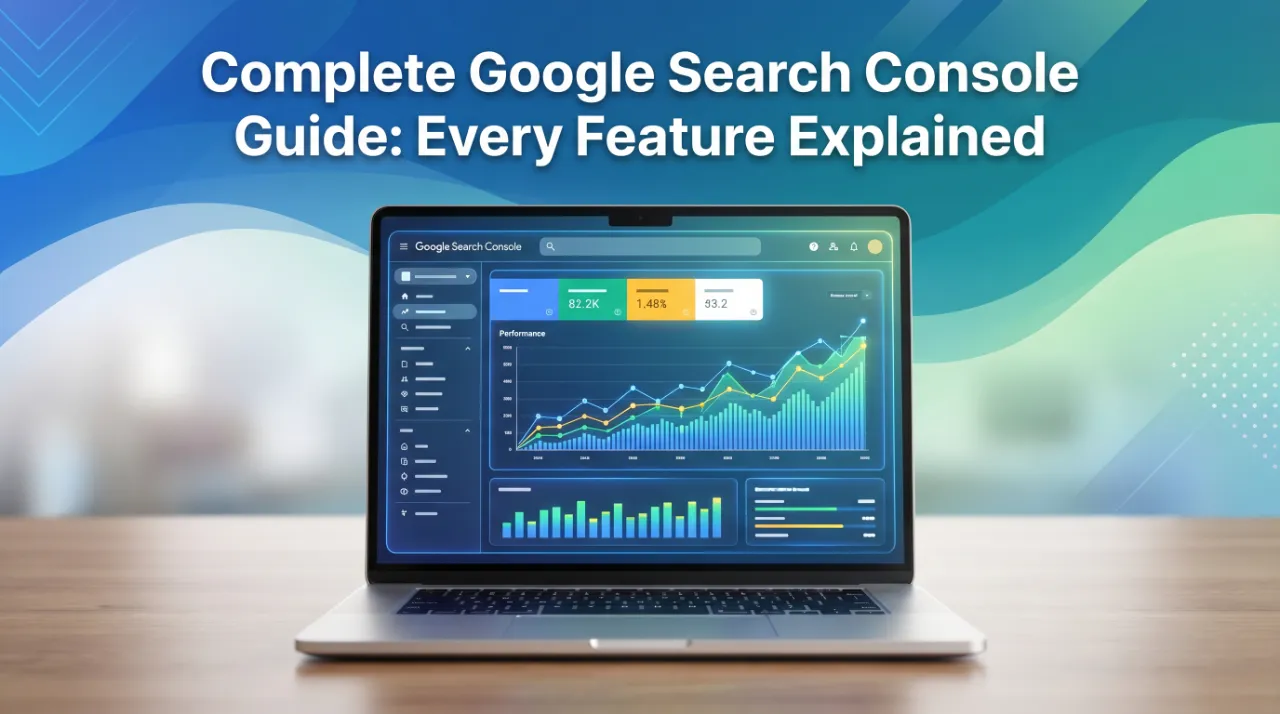
Google Search Console (GSC) is the most important free tool available
to website owners and SEO professionals. It gives you direct
communication from Google about how your site is performing in search
— what is ranking, what is broken, what is being indexed, and where
there are problems to fix.
Most website owners use 10% of what GSC offers. This guide covers
every significant report and feature in GSC as it stands in 2026,
explains what each one means, and tells you exactly what actions to
take from each.
Getting Started: How to Set Up GSC
If you have not yet added your site to Google Search Console, see our
step-by-step GSC setup guide
first. Setup takes under 10 minutes for most sites.
Once your property is verified, you will find GSC’s features organised
into these main sections in the left sidebar: Overview, Search Results
(Performance), URL Inspection, Indexing, Experience, Enhancements,
Security & Manual Actions, and Links.
Section 1: Performance (Search Results)
The Performance report is where most people spend most of their time
in GSC — and rightly so. It shows you exactly which queries are
bringing traffic to your site, which pages are ranking, what your
click-through rates are, and how your average position is trending.
Key Metrics
Total clicks: The number of times users clicked
through to your site from Google Search results. This is your most
reliable traffic metric from GSC.
Total impressions: The number of times any URL from
your site appeared in search results (whether or not the user saw it
or scrolled to it). Since September 2025, impression data is more
reliable following Google’s removal of the &num=100 parameter that
previously inflated counts.
Average CTR (click-through rate): Clicks divided by
impressions. A low CTR on a high-impression query means your title tag
and meta description are not compelling people to click — a quick win.
Average position: Your average ranking position
across all queries. Useful for trend analysis but not a reliable
absolute metric (it averages positions across many queries of varying
importance).
How to Use the Performance Report Effectively
Find your “strike zone” pages — pages ranking between
positions 8–20. These are close to page 1 but not quite there. Filter
by position (add filter → position → greater than 8, less than 20),
then look at clicks, impressions, and CTR. Pages in this range are
your best candidates for content updates that can push them to page 1.
Identify high-impression, low-CTR queries — Filter by
impressions (high), sort CTR ascending. Queries with thousands of
impressions but a CTR under 2% mean you are appearing in search but
your title/meta is not convincing people to click. Rewrite these title
tags and meta descriptions.
Compare date ranges — Use the “Compare” date feature
to compare traffic period-over-period. The “Pages” tab with comparison
shows you exactly which pages gained and lost the most clicks —
essential for diagnosing traffic drops.
Filter by country and device — Understanding which
countries and devices your traffic comes from is important for
prioritisation. If 70% of your traffic is mobile, mobile Core Web
Vitals and usability become even more critical.
Section 2: URL Inspection Tool
The URL Inspection tool is GSC’s most underused feature. It allows you
to fetch any specific URL and see exactly what Google knows about it,
including:
- Whether the URL is indexed
- When Google last crawled it
- What the canonical URL is according to Google
- Whether there are any indexing issues
-
What the page looked like to Googlebot when it last crawled
(screenshot and rendered HTML)
When to use URL Inspection:
-
After publishing a new article — use “Request Indexing” to ask
Google to crawl it sooner
- When troubleshooting why a specific page is not ranking
-
After fixing a technical error — test whether the fix resolved the
issue
- When checking canonical tag implementation on a specific page
Request Indexing: After making significant changes to
any page (new content, fixed errors, updated meta tags), open URL
Inspection, enter the page URL, and click “Request Indexing.” This
does not guarantee immediate crawling, but it places the URL in a
priority crawl queue. Use this after every significant page update.
Section 3: Indexing Reports
The Indexing section is where Google tells you about the state of your
pages in its index. This is where most technical SEO issues first
become visible.
Pages Report (formerly Coverage Report)
The Pages report shows the indexing status of all pages Google has
discovered on your site. It is divided into:
Indexed: Pages currently in Google’s index and
eligible to appear in search results.
Not indexed: Pages that Google has found but chosen
not to include in the index. This section has the most important error
types, each indicating a specific problem.
Common “Not indexed” statuses and what to do:
| Status | What it means | What to do |
| Crawled — currently not indexed | Google crawled it but deemed quality insufficient to index | Improve content quality, add more depth, fix thin content |
| Discovered — currently not indexed | Google knows it exists but hasn’t crawled it yet | Improve internal linking, check crawl budget, submit sitemap |
| Blocked by robots.txt | Robots.txt is preventing crawling | Fix robots.txt |
| Excluded by ‘noindex’ tag | Page has a noindex directive | Check if intentional; remove if not |
| Not found (404) | Page returns 404 error | Fix 404 error or add redirect
|
| Server error (5xx | Server is returning errors | Server error (5xx) |
| Redirect error | Redirect chain or loop | Fix redirect implementation |
| Alternate page with proper canonical tag | Correctly canonicalised to another URL | Expected — no action if canonical is correct |
| Duplicate without user-selected canonical | Duplicate content, no canonical | Add canonical tags |
| Soft 404 | Returns 200 but content is essentially empty | Add real content or redirect |
Priority action: Sort the “Not indexed” tab by
frequency. The most common error type affecting the most pages is your
highest priority fix.
Sitemaps
The Sitemaps section lets you submit your XML sitemap and check its
status. A healthy sitemap:
-
Contains only canonical URLs (no noindex pages, no paginated
variants unless you want them indexed)
- Is accepted by GSC with no errors
-
Has a high ratio of “Indexed” to “Submitted” URLs (ratio below 50%
suggests significant indexing issues)
Submit your sitemap: Go to Sitemaps → add your
sitemap URL (usually yourdomain.com/sitemap.xml or
yourdomain.com/sitemap_index.xml for WordPress) → Submit. GSC will
check it and report any errors.
Section 4: Experience Reports
Core Web Vitals
The Core Web Vitals report shows how your pages perform on Google’s
three user experience metrics:
-
LCP (Largest Contentful Paint): Page load speed —
target under 2.5 seconds
-
INP (Interaction to Next Paint): Responsiveness —
target under 200ms
-
CLS (Cumulative Layout Shift): Visual stability —
target under 0.1
The report shows pages as Good, Needs Improvement, or Poor —
separately for mobile and desktop. Always prioritise mobile, since
Google uses mobile performance for ranking.
Click into any “Poor” status to see the specific URLs affected and the
specific metric failing. For fix guides, see our articles on
Core Web Vitals and how they affect SEO.
Mobile Usability
The Mobile Usability report flags pages with specific mobile display
problems: viewport not set, text too small, content wider than screen,
clickable elements too close together. See our
complete mobile usability fix guide
for resolution steps.
HTTPS
The HTTPS report confirms whether your site is served over a secure
connection. All pages should be HTTPS. If any pages are flagged, check
your SSL certificate, redirect configuration, and mixed content issues
(HTTP resources loading on HTTPS pages).
Section 5: Enhancements (Structured Data / Rich Results)
The Enhancements section shows whether Google has detected structured
data (schema markup) on your site and whether it is valid. Enhanced
results can include star ratings, FAQ dropdowns, product prices,
breadcrumbs, and more — and each drives higher click-through rates
than standard organic listings.
Common enhancement types in GSC:
-
Breadcrumbs — Navigation path shown in search
results. Requires BreadcrumbList schema.
-
FAQ — Expandable Q&A sections shown directly in
search results. Requires FAQPage schema. High-impact for
click-through rate and AI citation (see our GEO guide).
-
Product — Price, availability, and rating shown in
results for product pages. Requires Product schema with price,
availability, and brand properties.
-
Video — Video thumbnail and duration in search
results. Requires VideoObject schema.
-
Review snippets — Star ratings from reviews.
Requires AggregateRating schema.
Action for each enhancement type:
-
Valid items: No action needed — these are working
correctly
-
Items with warnings: Improve the schema to include
recommended (not just required) fields
-
Invalid items: Fix the specific errors listed —
these enhancements are not appearing in search
Section 6: Security & Manual Actions
Manual Actions
The Manual Actions report is where Google communicates penalties
applied by its Quality review team. If this report shows “No issues
detected,” you are fine. If a manual action is listed, it tells you
the specific violation and whether it affects the whole site or
specific pages.
Manual actions require a reconsideration request after fixing the
issue. For a complete guide to manual action types and recovery, see
our Google Manual Action recovery guide.
Security Issues
The Security Issues report flags malware, phishing, and harmful
downloads detected on your site. If your site is hacked or has been
injected with malware, it will appear here. Address security issues
immediately — Google will warn users away from infected sites, causing
traffic to drop to near zero.
If security issues appear:
- Contact your hosting provider immediately
-
Use a security plugin (Wordfence for WordPress, Sucuri for any CMS)
to scan and clean the site
- After cleanup, request a security review in GSC
Section 7: Links
The Links section shows which pages on your site have the most
internal and external links pointing to them. This is valuable for:
-
External links (backlinks): Understand which of
your pages have the most backlinks — these are your most
authoritative pages, and internal links from them pass more
authority to other pages.
-
Internal links: See which pages have the most
internal links. Pages with very few internal links are likely
underperforming because they receive minimal authority signal from
the rest of your site.
-
Top linking sites: See which external domains link
to you most frequently. This helps you identify your strongest
backlink relationships.
Action: Find your pages with the highest number of
external backlinks. Ensure these pages have strong internal links
pointing to your most important conversion pages and service pages.
Section 8: Settings and Tools
Ownership Verification
GSC → Settings → Ownership verification. This shows how your property
is verified. Keep the verification method active — if the verification
token is removed (e.g. a plugin is deactivated that hosts the
verification meta tag), you lose GSC access.
Change of Address
If you migrate to a new domain, use the Change of Address tool to
notify Google. This helps transfer your ranking signals to the new
domain faster than organic recrawling.
URL Removal Tool
The URL Removal tool (under Index → Removals) allows you to
temporarily hide a URL from search results for approximately 6 months.
Use this for emergency removal only — for example, if a sensitive page
was accidentally published and is already indexed. It does not
permanently remove the page from Google — you still need to add a
noindex tag or delete the page.
GSC Weekly Monitoring Routine
For any site actively trying to grow organic traffic, a 15-minute
weekly GSC check covers the essentials:
Monday (5 minutes):
- Check Performance → last 7 days → any unusual click drops?
- Check Indexing → Pages → any new spike in errors?
Midweek (5 minutes):
- Check Coverage for any new “Not indexed” entries
- Check Manual Actions — should always be “No issues detected”
Weekly (5 minutes):
- Check Core Web Vitals — any pages moved to “Poor”?
- Check Sitemaps — any errors?
- Run URL Inspection on any pages recently updated
For sites seeing technical issues, daily monitoring during the
resolution period is warranted.
Getting More From GSC With Professional Support
GSC tells you what is wrong. Fixing it — especially for complex
technical issues — often requires SEO expertise and, sometimes,
developer access.
Our team at 3wBiz uses GSC data as the foundation of every technical
SEO audit we conduct. We identify the most critical issues, prioritise
by impact, and implement fixes that move the needle on organic
rankings.
Request a free GSC audit.
Related reading: