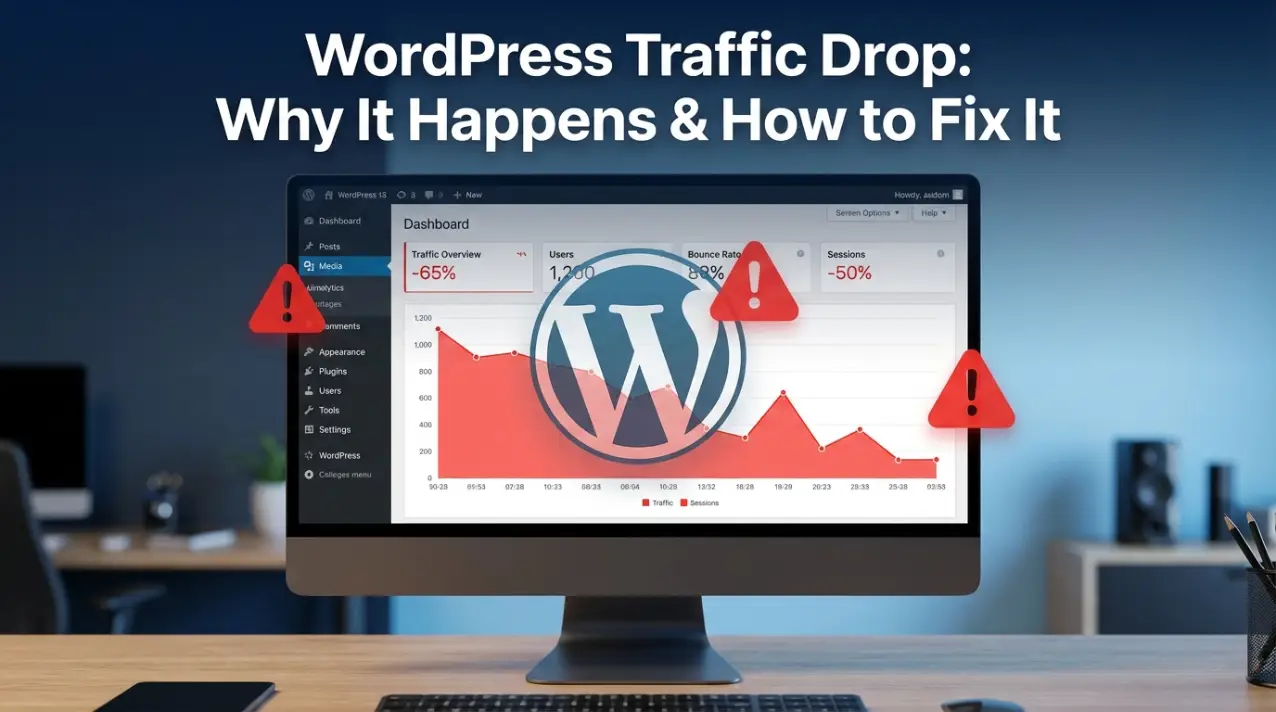
WordPress powers around 43% of the internet, and it is also responsible for a large share of mysterious traffic drops
— often triggered not by Google algorithm changes, but by a WordPress core update, a plugin update, or a theme
change that quietly breaks something SEO-critical.
If your WordPress site’s traffic dropped recently, this guide covers every likely cause and gives you the exact steps
to diagnose and fix it.
The First Question: Did a WordPress Update Happen?
WordPress core updates, plugin updates, and theme updates all run automatically for most sites (unless you have
disabled auto-updates). An update that deployed within 48 hours of your traffic starting to drop is your primary
suspect.
How to check: Go to your WordPress dashboard → Dashboard → Updates → Update History (or use a plugin like WP Activity
Log that records all changes with timestamps). Cross-reference the update history dates against when your GSC clicks
started to fall.
Even a minor SEO plugin update (Yoast, Rank Math, All in One SEO) can change how meta tags, canonical URLs, or robots
directives are output — with potentially catastrophic results for indexing.
9 WordPress-Specific Traffic Drop Causes and Fixes
1. Robots.txt Accidentally Blocking Googlebot
This is the most common cause of sudden, site-wide WordPress traffic drops — and the easiest to check. A single
incorrect line in your robots.txt file can tell Google to stop crawling your entire site.
The most dangerous line: Disallow: / — this blocks all crawlers from your entire site. It gets added accidentally
during development mode settings (some maintenance mode plugins do this) and sometimes stays in place after launch.
How to diagnose:
- Visit yourdomain.com/robots.txt directly in your browser
- Look for Disallow: / under User-agent: * — this blocks everything
- Or in GSC → Settings → Robots.txt — Google shows you the current file and will warn you if it detects blocking
issues
Fix: Edit your robots.txt (via your WordPress dashboard if your SEO plugin manages it, or via FTP/cPanel). The
correct general-purpose robots.txt for a public WordPress site should allow all crawling:
User-agent: *

Disallow: /wp-admin/

Allow: /wp-admin/admin-ajax.php

Sitemap: https://yourdomain.com/sitemap.xml
See our complete robots.txt fix guide
for GSC.
2. Noindex Accidentally Applied to Key Pages
WordPress SEO plugins give you granular control over which pages are indexed. This is powerful — and dangerous. An
accidental setting change can apply noindex to entire sections of your site.
Common scenarios:
- Yoast or Rank Math “Search appearance” settings set to “noindex” for a post type (e.g. all products, all blog
posts, all categories)
- A developer added noindex to a staging site and the change was pushed to production
- A plugin update reset your SEO settings to defaults
How to diagnose:
- View the source of an important page (right-click → View Page Source)
- Search for noindex in the page source
- If you see <meta name=”robots” content=”noindex”>, that page is being excluded from Google
Fix: Go to your SEO plugin settings (Yoast: SEO → Search Appearance → Content Types; Rank Math: Titles & Meta → Post
Types). Ensure no post type is set to noindex that should be indexed.
Also check individual pages — sometimes a page-level noindex setting is the culprit.
3. Plugin Conflict Breaking SEO Output
Two SEO plugins running simultaneously, or an SEO plugin conflicting with a page builder (Elementor, Divi, WPBakery),
can produce broken meta tags, duplicate canonical tags, or corrupted structured data output.
How to diagnose:
- View source of any page and search for canonical. Do you see two canonical tags? That is a conflict.
- Search for og: tags — are there duplicate Open Graph tags?
- Use Google’s Rich Results Test — are structured data errors showing that do not make sense for your setup?
See our specific guide on fixing Rank Math plugin SEO conflicts for
one of the most common plugin conflict scenarios.
Fix: Ensure only ONE SEO plugin is active. Deactivate and delete all secondary SEO plugins. If using a page builder,
check its settings for any SEO-related output it might be adding.
4. WordPress Core or Plugin Update Causing 5xx Server Errors
A WordPress update that introduces a PHP version incompatibility, or a plugin update that contains a fatal error, can
cause your site to return 500 Internal Server Errors to Googlebot. If Googlebot repeatedly encounters 5xx errors, it
stops crawling your site — and your pages start dropping from the index.
How to diagnose: Go to GSC → Indexing → Pages → “Server error (5xx)”. If pages are listed here, your server is
returning errors to Googlebot.
Fix:
- Check your WordPress error log (via cPanel → Error Logs or via your hosting dashboard)
- Identify which update triggered the errors
- Deactivate the offending plugin or roll back to the previous theme version
- If the issue is PHP version incompatibility, your host can roll back the PHP version in their control panel
See our full 5xx server error fix
guide.
For complex server-level issues that require developer intervention, our web
development team can diagnose and fix these remotely.
5. Permalink Structure Change
If your WordPress permalink structure was changed — either intentionally during a redesign or accidentally through a
settings reset — every URL on your site will have changed. Your old URLs (which had rankings and backlinks) now
return 404 errors.
How to diagnose: In GSC → Indexing → “Not found (404)”. If you see your previously-indexed URLs returning 404s, and
these do not match your current URL structure, a permalink change is the cause.
Fix:
- In WordPress → Settings → Permalinks — confirm your current structure and save (this rebuilds the rewrite rules)
- Implement 301 redirects from all old URL patterns to their new equivalents using a redirect plugin (Redirection
is the most widely used)
- Submit your updated sitemap in GSC to accelerate recrawling
6. Caching Plugin Serving Stale Noindex Pages
If your caching plugin cached a version of a page that had a noindex directive (perhaps during a development phase),
it may continue serving that cached version to Googlebot even after you removed the noindex.
How to diagnose: Clear your cache completely, then visit the page and view source. If noindex disappears after
clearing cache, the cache was serving stale content.
Fix: Clear all caches (WordPress caching plugin, server-level cache, CDN cache). For WP Rocket: Rocket → Tools →
Clear Cache. For LiteSpeed: LiteSpeed Cache → Purge All.
Going forward, configure your caching plugin to automatically purge cache when SEO settings change.
7. WordPress Site Speed Degradation From Update Bloat
Over time — especially after major WordPress core updates or theme updates — sites accumulate additional database
tables, orphaned metadata, and increased JavaScript payloads. This can gradually degrade your Core Web Vitals
scores, leading to incremental ranking losses rather than a sudden drop.
How to diagnose: Run a PageSpeed Insights test on your homepage now, and compare against any historical results you
have. If LCP or CLS has deteriorated, speed is a contributing factor.
Fix:
- Run a WordPress database cleanup (WP-Optimize or WP Rocket’s database optimisation tool)
- Update your PHP version to the latest stable release (PHP 8.2 or 8.3 in 2026) — newer PHP versions process
WordPress faster
- Deactivate any plugins you are no longer using
- Run a new Core Web Vitals audit
For comprehensive WordPress speed improvements, see our WordPress
speed optimisation service.
8. XML Sitemap Issues After Update
Some plugin updates break or reset the XML sitemap configuration. If your sitemap is no longer updating, is returning
errors, or is including pages that should be excluded (admin pages, tag archives, search result pages), this signals
low content quality to Google.
How to diagnose:
- Visit yourdomain.com/sitemap.xml — confirm it loads and contains your current pages
- In GSC → Sitemaps — are there any errors listed for your submitted sitemap?
- Check if the sitemap includes noindex pages (it should not)
Fix: Go to your SEO plugin sitemap settings and regenerate the sitemap. In Yoast: SEO → Features → XML Sitemaps →
regenerate. In Rank Math: Rank Math → Sitemap Settings → save. Re-submit the sitemap URL in GSC.
9. Hosting Change or Migration Issues
If you recently moved your WordPress site to a new host — even with the same domain — misconfigured server settings,
changed PHP versions, missing SSL certificates, or incomplete database migrations can all cause indexing and
performance issues.
Common post-migration problems:
- HTTP to HTTPS not redirecting properly (duplicate content)
- Missing or incorrect SSL certificate (GSC security warnings)
- Database connection errors returning 5xx responses
- Sitemap URL in GSC pointing to old host
Fix: After any hosting migration, run through a full GSC health check: check coverage report, sitemap status, manual
actions, Core Web Vitals, and use URL Inspection to test 5–10 important pages individually.
WordPress Traffic Drop Recovery Checklist
- Checked update history — identified any updates near the traffic drop date
- Verified robots.txt — no Disallow: / for all bots
- Checked for accidental noindex on post types or key pages
- Confirmed only one SEO plugin is active
- Checked GSC for 5xx server errors
- Verified permalink structure unchanged — 404 redirects in place if changed
- Cleared all caches and re-verified noindex status
- Checked PageSpeed Insights — LCP under 2.5s, CLS under 0.1
- Checked sitemap loads correctly and is submitted in GSC
- No duplicate canonical tags in page source
Need a Professional WordPress SEO Fix?
If you have worked through this checklist and are still unable to identify the cause of your WordPress traffic drop,
the issue may require hands-on access to your server configuration, database, or plugin code.
Our web development team handles WordPress-specific technical diagnosis and
fixes — including plugin conflicts, server errors, migration issues, and SEO plugin configuration. For a broader SEO
recovery audit, request a free quote.
Related reading: