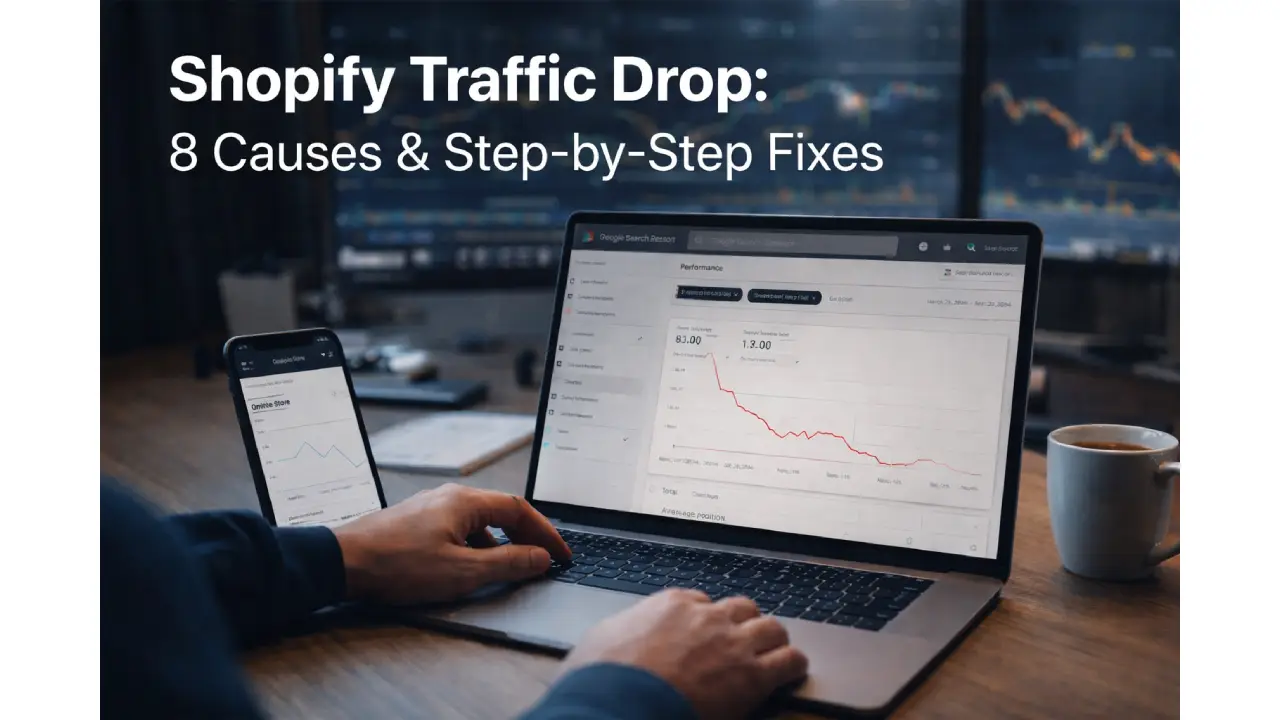
Shopify is the most popular ecommerce platform globally — and it comes with a set of built-in SEO limitations that cause traffic drops for thousands of store owners every year, often without any obvious trigger.
If your Shopify store’s organic traffic has dropped, this guide identifies the most likely causes specific to Shopify’s architecture and gives you clear steps to fix each one.
Why Shopify Has Unique SEO Challenges
Before diving into fixes, it helps to understand what makes Shopify SEO different from WordPress or other platforms:
Shopify generates duplicate URLs by default. Every product in Shopify can be accessed through its collection (e.g. /collections/shoes/products/nike-air) and directly (e.g. /products/nike-air). This creates two valid URLs for every product — a classic duplicate content problem.
Apps add JavaScript to every page. Every Shopify app you install loads scripts on every page of your store, even if the app widget only appears on some pages. Too many apps = slow store = poor Core Web Vitals = lower rankings.
Theme limitations. Many Shopify themes are not optimised for SEO. They may load large JavaScript libraries, miss structured data, or generate bloated HTML that slows page load.
Limited control over technical SEO. Unlike WordPress, you cannot freely edit your robots.txt or implement server-level redirects. Shopify handles these through its own system, which has constraints.
Step 1: Check GSC for the Exact Problem
Before assuming what caused your Shopify traffic drop, spend 10 minutes in Google Search Console:
- Performance tab — compare clicks over the past 90 days. Identify when the drop started.
- Indexing tab — look for a spike in “Not indexed” pages. Check the specific reasons.
- Core Web Vitals — are your pages flagged as “Poor”?
- Manual Actions — is there a penalty?
The specific GSC errors will tell you exactly which of the following causes applies to your store.
8 Common Shopify Traffic Drop Causes and Fixes
1. Duplicate Product URLs (The /collections/ vs /products/ Problem)
This is Shopify’s most notorious SEO issue. By default, Shopify creates two accessible URLs for every product:
- /products/product-name (the canonical URL)
- /collections/collection-name/products/product-name
Google can index both, creating duplicate content signals. Over time, Google may choose to index the collection URL rather than the canonical product URL — or simply devalue both.
How to diagnose: In GSC → Pages → look for “Duplicate, Google chose different canonical than user.” If you see collection URLs listed here, this is your problem.
Fix: Shopify automatically adds a canonical tag pointing to /products/product-name on collection product pages. However, if your theme has override canonical tags or your app has modified them, this breaks.
- Inspect a collection product page: right-click → View Page Source → search for rel=”canonical”
- Confirm it points to the /products/ URL, not the /collections/ URL
- If not, contact your theme developer or check which app modified canonical tags
Additionally, ensure internal links from your navigation and featured product sections always link to /products/ URLs, not /collections/products/ URLs.
See our guides on fixing Duplicate Without User-Selected Canonical for a deeper explanation of how canonicals work.
2. 404 Errors From Deleted Products
When you delete a product in Shopify, its URL immediately returns a 404 error. If that product page had Google rankings, backlinks, or was featured in blog posts, all of that value is now lost.
How to diagnose: GSC → Indexing → “Not found (404)”. Look for product URLs that previously had impressions now returning 404.
Fix: In Shopify, go to Online Store → Navigation → URL Redirects. Add a redirect for each deleted product URL pointing to:
- A similar replacement product (if one exists)
- The relevant collection page (if no replacement)
- Your homepage (as a last resort only)
For stores with many deleted products, use the Shopify bulk redirect import feature — export your list of broken URLs from GSC, create a CSV of source → destination mappings, and import them all at once.
Read our full 404 error fix guide for more detail.
3. Too Many Installed Apps Slowing Your Store
Every Shopify app you install adds JavaScript to your storefront. Many apps load scripts on every page — even pages where the app is not used. A store with 20+ apps installed can easily have a 3–5 second LCP, which directly hurts rankings.
How to diagnose:
- Go to PageSpeed Insights and test your homepage and a product page
- Scroll to “Reduce the impact of third-party code” — this lists all external scripts and their impact
- Identify apps loading scripts with over 100ms blocking time
Fix:
- Go to your Shopify admin → Apps → review every installed app
- Uninstall any app you do not actively use (deleted apps sometimes leave scripts behind — check with a developer)
- For apps you do use, check if there is a setting to limit which pages they load on
- Consider replacing multiple single-purpose apps with one comprehensive app that serves multiple functions
4. Product Schema Errors in GSC
Google Search Console’s Shopping section shows structured data errors for your product pages. Common Shopify schema errors include:
- Invalid object type for field “brand” — Shopify sometimes outputs the brand as a plain text string rather than a Brand type object
- Missing field: price or Missing field: availability — often caused by apps or theme customisations overriding the default schema
- Missing shippingDetails — increasingly required for rich snippet eligibility
These errors reduce your products’ eligibility for rich results (star ratings, price, availability shown directly in Google search) — lowering click-through rates.
Fix: See our specific guide on fixing the invalid object type for brand field in Shopify. For other schema issues, a Shopify developer can modify your theme’s product.json or relevant liquid schema templates to output the correct structured data format.
5. Thin Collection Pages
Shopify collection pages (your category equivalents) are often nothing but a grid of products and a title. Google classifies these as thin content. In competitive product niches, thin collection pages will consistently lose to competitor category pages that include helpful buying guides, comparison text, and editorial content.
Fix: Add 200–400 words of useful editorial content to your most important collection pages. This can be placed:
- At the top of the collection (a brief intro with keywords naturally included)
- At the bottom of the collection (a buyer’s guide section below the product grid)
In Shopify, go to Online Store → Collections → select a collection → Description. Add your content here. Your theme will typically display this either above or below the product grid.
Focus on your top 10 highest-traffic potential collection pages first.
6. Faceted Search Creating Duplicate Pages
If your Shopify theme has a filtering system (filter by colour, size, material, price range), each filter combination may create a unique URL. This can generate hundreds or thousands of near-duplicate URLs that Google indexes, diluting your crawl budget and creating duplicate content signals.
For example: /collections/shoes?filter.p.m.colour=red&filter.p.m.size=10 generates a unique URL for every colour/size combination.
How to diagnose: In GSC → Indexing → Pages — if you see thousands of URLs with query parameters from your collection pages, faceted indexing is the issue.
Fix: In Shopify, go to Online Store → Preferences → Head code and add noindex meta tags for filter URL patterns, or use Shopify’s built-in “search engines can’t see this page” setting for filtered collection views. Alternatively, configure Shopify’s URL parameters in GSC’s Legacy Tools.
7. Blog Content Not Internally Linking to Products
If your Shopify store has a blog (and it should — it is a valuable traffic driver), but none of your blog posts link internally to relevant product or collection pages, you are missing a significant opportunity. Blog traffic that has no path to product pages does not convert, and Google sees isolated blog content as having low commercial authority.
Fix:
- Review your top 10 blog posts by traffic
- Add contextual links from each post to 2–3 relevant products or collections
- Add a “Shop related products” section at the end of each blog post
- Ensure your blog posts receive internal links from your collection page descriptions
8. Theme Update or App Update Breaking Something
One of the most commonly overlooked causes of sudden Shopify traffic drops is a theme update or app update that unintentionally changes something SEO-critical. Common breakages include:
- Canonical tags overridden or removed
- Structured data schema broken
- Noindex tags accidentally added to collection pages
- Robots.txt modified
- Title tag format changed (removing the product name or brand)
How to diagnose: Cross-reference your traffic drop date with your Shopify changelog (Admin → Settings → Activity log). Did a theme update or app installation happen within 48 hours of your traffic starting to drop?
Fix: If a specific update caused the issue, rolling back to the previous theme version (using Shopify’s version history) is the fastest fix. Then re-implement the update once the SEO issue is identified and resolved.
Shopify SEO Recovery Checklist
- Checked GSC — identified exact pages and error types causing the drop
- Verified canonical tags point to /products/ URLs, not /collections/ URLs
- Added 301 redirects for all deleted product pages
- Audited installed apps — removed all unused apps
- Checked PageSpeed score — LCP under 2.5s on mobile
- Fixed all product schema errors in GSC
- Added editorial content to top 10 collection pages
- Resolved faceted navigation URL indexing issues
- Added internal links from blog posts to relevant products
- Checked activity log for theme/app updates near the traffic drop date
Need Professional Help With Your Shopify SEO?
Shopify’s SEO quirks — especially duplicate URL handling, schema issues, and app bloat — can be difficult to resolve without hands-on access to your theme code.
Our Shopify development and SEO service covers full technical audits, schema fixes, speed optimisation, and structured redirect implementation. For a broader SEO recovery plan, request a free quote from our technical SEO team.
For general ecommerce traffic drop causes beyond Shopify-specific issues, see our complete ecommerce traffic drop guide.
Related reading: